A bug report with a screenshot attached looks complete. It often isn't. The screenshot shows an error state, but not the three clicks that led there; it's cropped tight around the obvious part, cutting off the URL bar, the timestamp, or the field that was actually filled in wrong; or it shows exactly the right thing but nobody circled it, so the developer stares at a full UI trying to guess what's broken. Every one of those gaps turns into a comment thread — "can you reproduce this?", "what did you click before this?", "which environment?" — and the bug sits untouched until someone answers.
None of that is really about the tool. It's about what the screenshot needs to communicate versus what a quick capture-and-paste actually captures. The gap between those two is where most bug reports lose time.
What Actually Makes a Bug Report Actionable
Most guidance on writing bug reports converges on the same four things, regardless of whether you're filing into Jira, Linear, GitHub Issues, or a shared spreadsheet:
- Steps to reproduce — a numbered sequence of exact actions, starting from a known state, with no assumed context. "Go to settings and it breaks" isn't a step; "Click Settings → Billing → change plan to Pro → click Save" is.
- Expected result — what should have happened.
- Actual result — what actually happened, described as an observation ("the page shows a 500 error") rather than a guess at the cause ("the API must be timing out").
- Environment — OS, browser or app version, and anything else that could make the bug environment-specific.
Screenshots do the heaviest lifting in the second and third of those — expected vs. actual is often far easier to show than to describe, especially for layout bugs, off-by-one visual glitches, or anything where "it looks wrong" is the whole bug. The steps-to-reproduce section is where a single static screenshot alone falls short, which is the first mistake worth fixing.
Where Screenshot-Based Bug Reports Usually Go Wrong
A few patterns account for most of the back-and-forth:
The crop is too tight. A screenshot of just the broken button or error message, with no URL, no surrounding page, no visible state, forces the developer to ask what page this was even on.
Nothing points at the problem. If the bug is one misaligned label on an otherwise normal-looking page, a plain screenshot makes the reader hunt for it. A report that says "see attached" without marking anything specific assumes the issue is more obvious than it usually is.
The repro is a single screenshot standing in for a multi-step sequence. If the bug only shows up after three specific actions, one screenshot of the final broken state doesn't tell anyone how to get there — it just proves the bug exists.
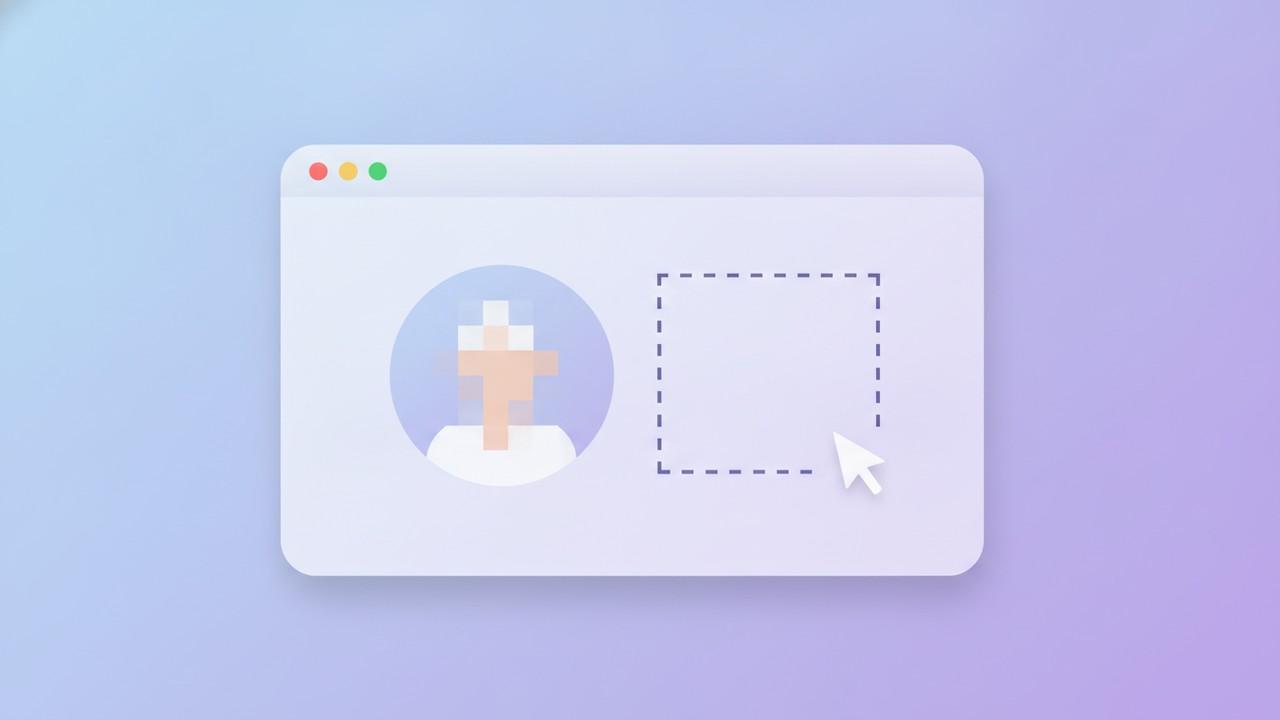
Sensitive data ships with the screenshot. Bug reports routinely include real customer emails, account IDs, session tokens, or internal URLs, especially when the bug happens in a real environment rather than a sanitized test account. That's fine for an internal ticket a small team sees; it's a problem the moment that same screenshot gets pasted into a public GitHub issue, a support forum post, or a shared Slack channel outside the immediate team.
Building a Bug Report Screenshot That Doesn't Need a Follow-Up
Capture more context than feels necessary. A window capture or full-page/scrolling capture that includes the URL bar, page title, and surrounding layout costs nothing extra and answers "what page/state was this" before anyone has to ask. For bugs on long pages — a broken layout partway down a scrolling settings panel, or a chat thread where the issue only shows up after scrolling — a scrolling capture that stitches the whole thing into one image is a better source of truth than a viewport-sized crop, since it shows the layout in context instead of one screen's worth of it.
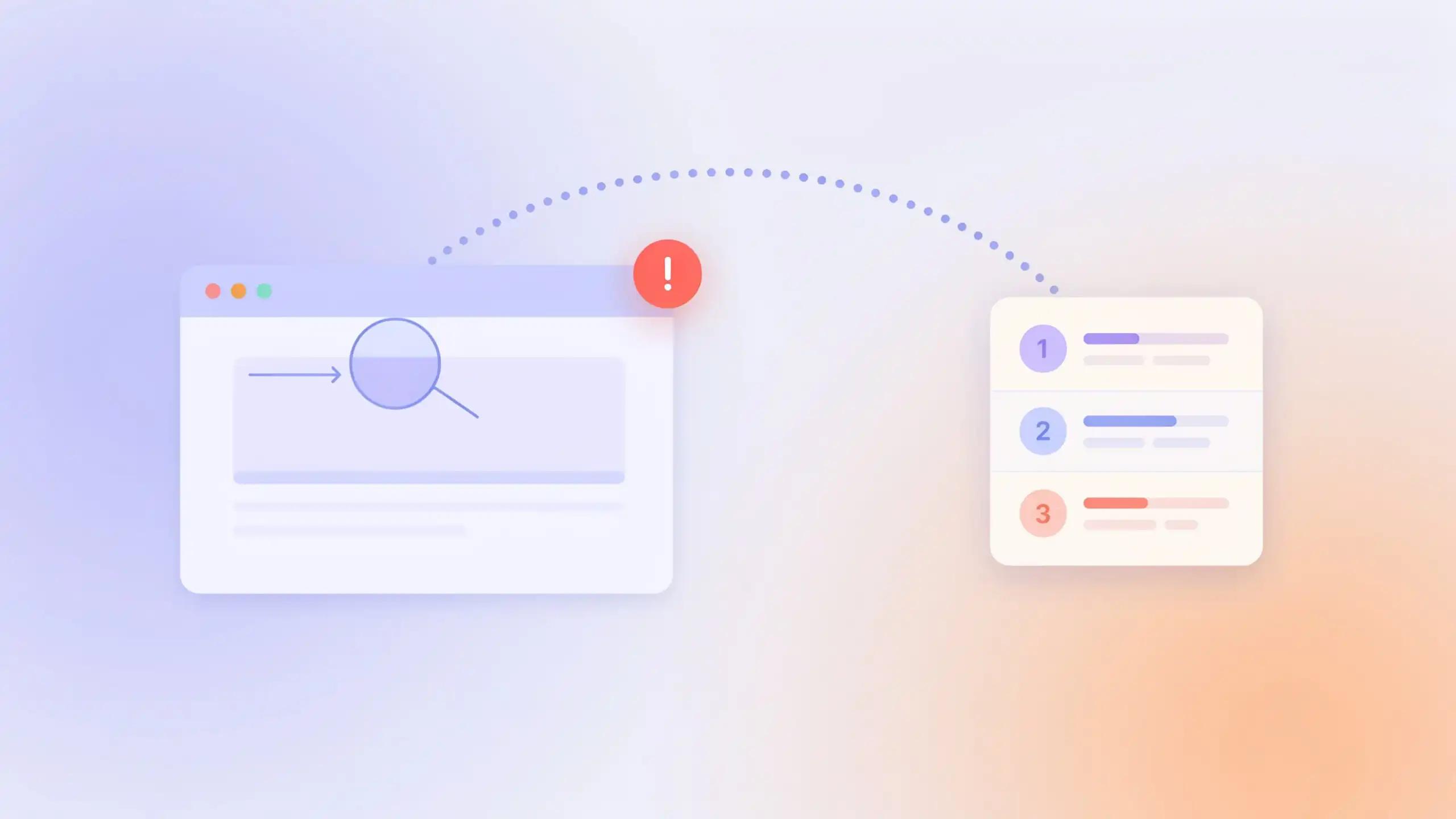
Mark the specific thing, not just the general area. An arrow or a tight box around the actual problem removes the guessing. For a small detail — a single misaligned pixel value, a typo in fine print — a magnifier-style callout that pairs a source box with a zoomed-in loupe view makes a detail visible that a plain screenshot would bury. For a UI that's otherwise fine except one area, dimming everything but that area draws the eye there immediately, which is faster to parse than an arrow pointing across a busy screen.
Number a repro sequence instead of describing it. When a bug takes several steps to trigger, a sequence of screenshots with numbered markers on each one — matching the numbered list in the steps-to-reproduce section — lets the developer follow along visually instead of cross-referencing a wall of text against one image.
Redact before you paste, not after someone asks. Auto-redaction that scans a screenshot for emails, phone numbers, IP addresses, and credit card numbers and lets you cover the matches with a blur or solid color (Savvyshot does this on-device, using the OS's own text recognition, so nothing leaves your machine) turns "strip the sensitive stuff" into a five-second step instead of a reason to skip filing the report cleanly. It's worth remembering this kind of detection is pattern-based — a session token or an internal-only URL usually won't get flagged automatically, so a quick manual check (and a manual blur where needed) is still worth doing before anything leaves an internal channel.
Keep a reference visible while you reproduce. If you're comparing a broken screen against a design spec or a previous bug report while retracing steps, pinning a screenshot as a small floating, always-on-top window (a licensed feature in Savvyshot, not part of the free tier) means you're not alt-tabbing back and forth to check what you're comparing against.
A Simple Screenshot-First Bug Report Template
A minimal structure that covers the four essentials above:
- Summary — one sentence describing the bug.
- Environment — OS, browser/app version, account or plan type if relevant.
- Steps to reproduce — numbered list, each step paired with a marked-up screenshot where the action isn't obvious from text alone.
- Expected result — what should happen, in one or two sentences.
- Actual result — what happens instead, with a screenshot or scrolling capture showing the full broken state, annotated to point at the specific problem.
Filing it while the bug is still fresh matters as much as the format — reproduction steps and the exact environment are easy to misremember even a few hours later, and a report filed immediately tends to need far fewer follow-up questions than one written from memory the next day.
When a Screenshot Isn't Enough
Some bugs genuinely need more than a still image — a race condition that only shows up on video, or a backend error where the actual useful evidence is a console log or a failed network request rather than anything visible on screen. Dedicated bug-reporting tools like Marker.io, BugHerd, or Bird Eats Bug build specifically for that case: they capture a screen recording alongside console logs, network requests, and browser/OS metadata automatically, and file directly into a tracker. That's a different category of tool than a screenshot editor, and worth reaching for when the bug's root cause genuinely isn't visible in a still image. For the large share of bugs that are visual, layout, or state-related, though, a well-captured, clearly annotated, properly redacted screenshot — attached to steps written the way a stranger would need them written — closes most of the gap that turns one bug report into three follow-up messages.