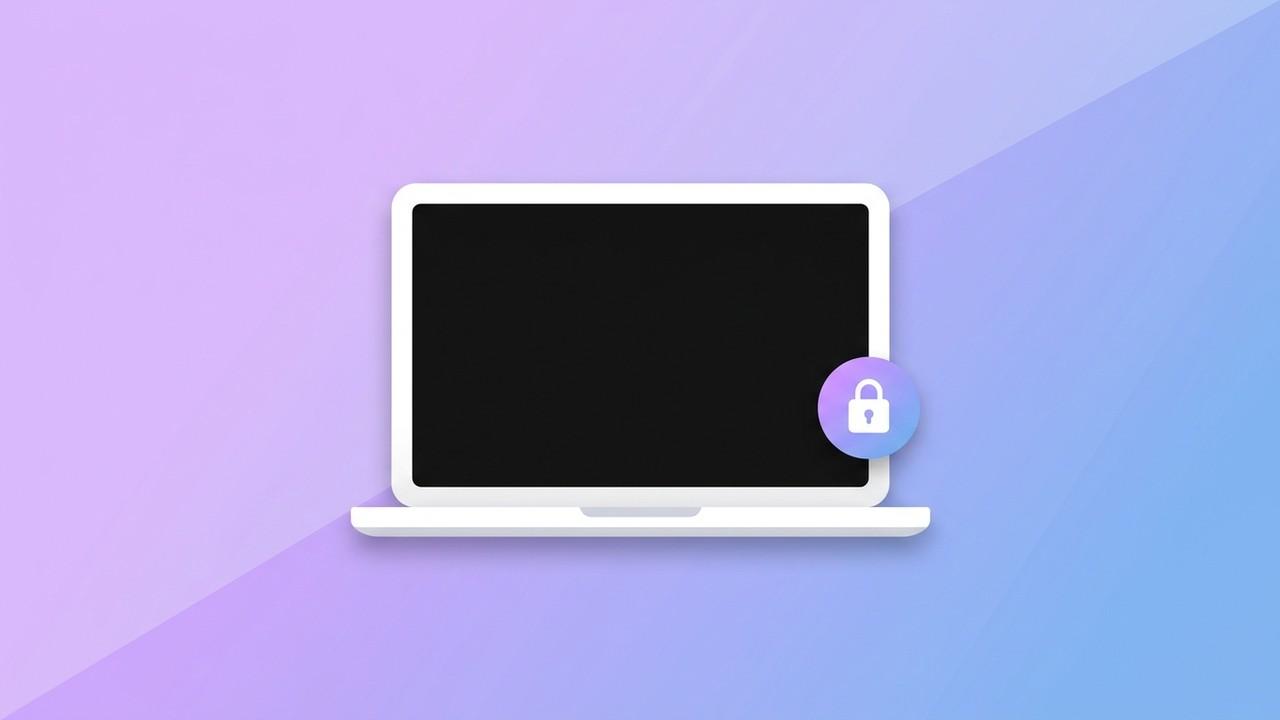
You hit the shortcut, the capture flashes, and the resulting image is just black. Not corrupted, not glitchy — a clean, solid black rectangle exactly the size of the window or screen you were trying to capture. It happens with the built-in macOS screenshot tool, with third-party apps, sometimes only in certain windows and not others. The instinct is to blame the app: reinstall it, check for updates, restart the Mac. None of that usually fixes it, because the app isn't the thing that's broken.
Why macOS Does This on Purpose
Starting with macOS Catalina, Apple changed how screen capture works at the system level. Before that, any app could read the pixels on your screen without asking. Since Catalina, every app — including Apple's own Screenshot utility — has to be explicitly granted Screen Recording permission before the operating system's capture APIs will hand over real pixel data. If that permission hasn't been granted, macOS doesn't throw an error or refuse to run the capture. It runs it, and hands back an image that's just black.
That's the part that catches people off guard: a missing permission looks identical to a rendering bug. There's no dialog, no crash log, nothing pointing at "Screen Recording" as the cause unless you already know to look there. This is also why the issue tends to reappear after macOS updates, after reinstalling an app, or after moving an app to a different folder — macOS ties the permission grant to the specific, signed copy of the app on disk, and a new build or a new file path can invalidate it.
The Two Permissions a Screenshot App Actually Needs
Most screenshot tools on macOS depend on two separate permissions, and they fail differently when missing:
- Screen Recording — required for any capture that reads screen pixels: full-screen, window, and scrolling captures all depend on it. Without it, captures come back black.
- Accessibility — needed for anything that has to interact with other windows programmatically, most commonly scrolling capture (which needs to scroll the target window in sync with each capture step) and global keyboard shortcuts that should work from any app. Missing this one doesn't produce a black image — scrolling capture just won't advance, or a global hotkey silently does nothing.
If you're troubleshooting a black screenshot specifically, Screen Recording is almost always the one to check first. Accessibility issues show up as a different symptom (a stuck or non-advancing capture, or a shortcut that doesn't fire at all), not a black frame.
How to Fix It
The fix is the same across virtually every screenshot app on macOS, because it's a system-level permission, not an app setting:
- Open System Settings → Privacy & Security → Screen Recording.
- Find the app in the list and toggle it on. If it's not listed at all, trigger a capture once first — most apps request the permission the first time it's actually needed, which is what adds them to this list.
- Quit the app completely and relaunch it. This step is the one people skip, and it's the reason "I already turned it on" doesn't fix anything. macOS only applies a Screen Recording grant to a freshly launched process — toggling the setting while the app keeps running does nothing until you restart it.
- Try the capture again.
If scrolling capture specifically isn't working (freezing partway, or not scrolling at all) even after fixing Screen Recording, check System Settings → Privacy & Security → Accessibility the same way and restart the app again.
Savvyshot surfaces this directly instead of leaving you to guess: if Screen Recording isn't granted, a Permission Needed warning appears in the app, and clicking it opens a dedicated Permission Check page that jumps straight to the right System Settings pane and re-checks automatically once you return to the app. It's a small thing, but it removes the "which permission, and where do I even go" step that trips people up on every other tool too.
Why It Can Break Again Later
If a screenshot tool worked fine for months and suddenly started producing black images with no changes on your end, macOS Sequoia is a likely explanation. Starting with Sequoia (macOS 15), Apple added a recurring re-authorization prompt for any app using Screen Recording — originally weekly, adjusted after user feedback to roughly monthly. When it fires, you get a system prompt asking whether to continue allowing screen recording for that app; ignoring or dismissing it without explicitly re-confirming can leave the permission in a state where captures quietly start coming back black again, with no obvious explanation.
This is expected behavior on Sequoia and later, not a bug in whatever app you're using. If black screenshots start up out of nowhere, check for one of these re-authorization prompts (or just walk back through the Screen Recording toggle-and-restart steps above) before assuming something in the app itself broke.
Other Reasons a Screenshot Might Be Black
Permissions cover the overwhelming majority of cases, but a few other situations produce the same black-frame symptom for unrelated reasons:
- DRM-protected content. Video from Netflix, Apple TV+, and similar services is deliberately blacked out in any screen capture, regardless of permissions — this is enforced by the content protection system, not something a screenshot tool can work around or that indicates anything is broken.
- Managed devices. On a company-managed Mac, an MDM (mobile device management) profile can block Screen Recording permission entirely for security reasons. If Screen Recording doesn't appear in System Settings at all, or toggling it does nothing, that's worth confirming with IT before troubleshooting further on your own.
- A stale permission cache after a major macOS upgrade. Occasionally the permission database doesn't carry over cleanly across a major version upgrade. If an app that previously worked is now stuck, removing it from the Screen Recording list entirely (select it, click the minus button) and re-adding it by triggering a fresh permission prompt sometimes clears a stuck state that toggling alone doesn't.
What This Looks Like on Windows
Windows doesn't have an equivalent permission gate for screen capture — there's no Screen Recording toggle to check, and a black screenshot on Windows almost always points somewhere else: a hardware-accelerated video overlay not being composited correctly, a capture running in a virtual machine without the right graphics driver support, or (similar to macOS) DRM-protected video content. If you're switching between a Mac and a Windows machine and a screenshot tool behaves differently on each, this permission model is usually the reason — not an inconsistency in the tool itself.
The Short Version
A black screenshot on Mac is a permissions problem in the vast majority of cases, not an app problem. Check Screen Recording in System Settings, make sure the app is actually toggled on, and — the step that actually matters — fully quit and relaunch the app afterward rather than assuming the toggle takes effect immediately. If scrolling capture or global shortcuts are what's broken instead of a black image, check Accessibility the same way. And if it was working fine last month and isn't now, a macOS Sequoia re-authorization prompt sitting unanswered in the background is worth checking before anything else.