You've taken the screenshot. Now you need to point something out — a button, an error, a setting buried three menus deep. So you open your annotation tool and start adding arrows. Then a text label. Then a highlight. Then another arrow.
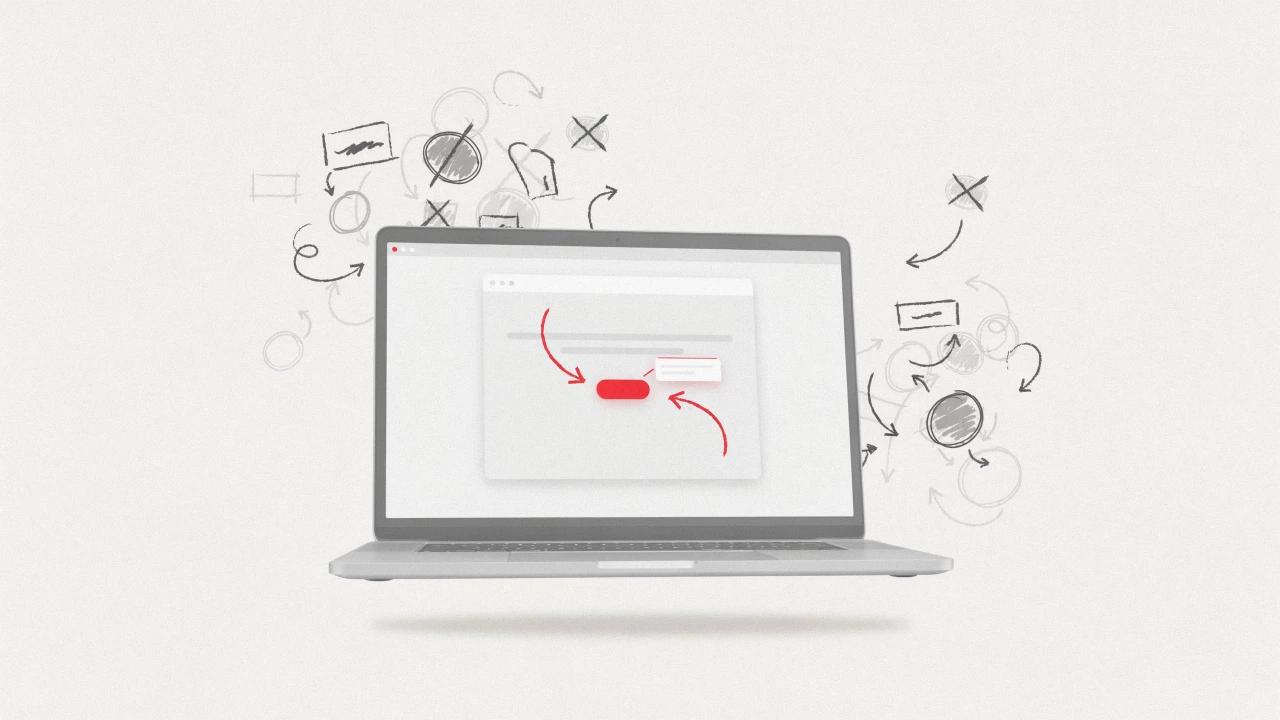
By the time you're done, the screenshot looks like a ransom note.
Over-annotated screenshots are one of the most common visual communication mistakes — and they're easy to avoid. Here's how to keep your annotated screenshots clear, professional, and actually useful.
Why Annotations Go Wrong
The instinct behind cluttered annotations is usually good: you want to make sure the viewer doesn't miss anything. But more annotations don't mean more clarity. They create visual competition — the eye doesn't know where to go first, so it gives up.
The most effective annotated screenshots share a few traits: they show one idea per image, use a limited set of visual elements, and treat negative space as part of the design.
1. One Screenshot, One Point
The single most effective rule: if you're making more than one point, use more than one screenshot.
A screenshot that highlights six different things simultaneously forces your viewer to mentally triage your annotations before they can understand any of them. Split it up. Two clean screenshots with one annotation each will always outperform one chaotic screenshot with six.
This is especially true for tutorials, support documentation, and product walkthroughs — anywhere the viewer needs to take action based on what they're seeing.
2. Limit Yourself to Two or Three Annotation Elements
Pick a small set of annotation types and use them consistently:
- Arrow — to direct attention to a specific element
- Rectangle or highlight — to frame an area of focus
- Text label or callout — to name or explain what you're pointing at
You rarely need all three in the same screenshot. An arrow alone is often enough. A highlight box with no label can work just as well as an arrow. The more types you combine, the busier it gets.
If you find yourself reaching for a fourth annotation type, that's a signal to split the screenshot instead.
3. Use Color Purposefully (Not Decoratively)
Color draws the eye before text does. That makes it powerful — and easy to overuse.
Stick to one accent color for your annotations. High-contrast options like red, orange, or yellow work well against most UI backgrounds. Avoid using multiple colors to "categorize" annotations unless your audience already understands your color system. To a first-time viewer, green vs. blue annotations just look inconsistent.
Also consider the background of the screenshot itself. If the UI is already colorful, a bright red arrow can blend in. In those cases, a white arrow with a dark outline, or a colored annotation on a slightly dimmed screenshot, will stand out more reliably.
4. Don't Annotate What the Text Already Says
A common mistake in documentation and tutorials: the caption says "click the Save button in the top right," and there's also an arrow pointing at it. That's fine. But then there's also a text label on the annotation that says "Save button."
Pick one. Let the surrounding text do the explaining; let the annotation do the pointing. A clean arrow with no label is often more readable than an arrow plus a label plus a callout box all saying the same thing.
5. Use a Magnifier When the Detail Is Small
Sometimes the element you're annotating is genuinely small — a dropdown arrow, a toggle, a status indicator. Instead of zooming in the entire screenshot (which loses context) or circling a tiny area that's hard to see, use a magnifier callout.
A magnifier shows the full screenshot for context and pulls out the specific detail at larger size inline. It gives viewers both the "where" and the "what" without forcing them to squint.

Savvyshot's magnifier annotation (new in v1.4.0) does exactly this — you select the area to enlarge and it places a zoom callout directly on the canvas, styled to match your other annotations.
6. Redact Before You Annotate
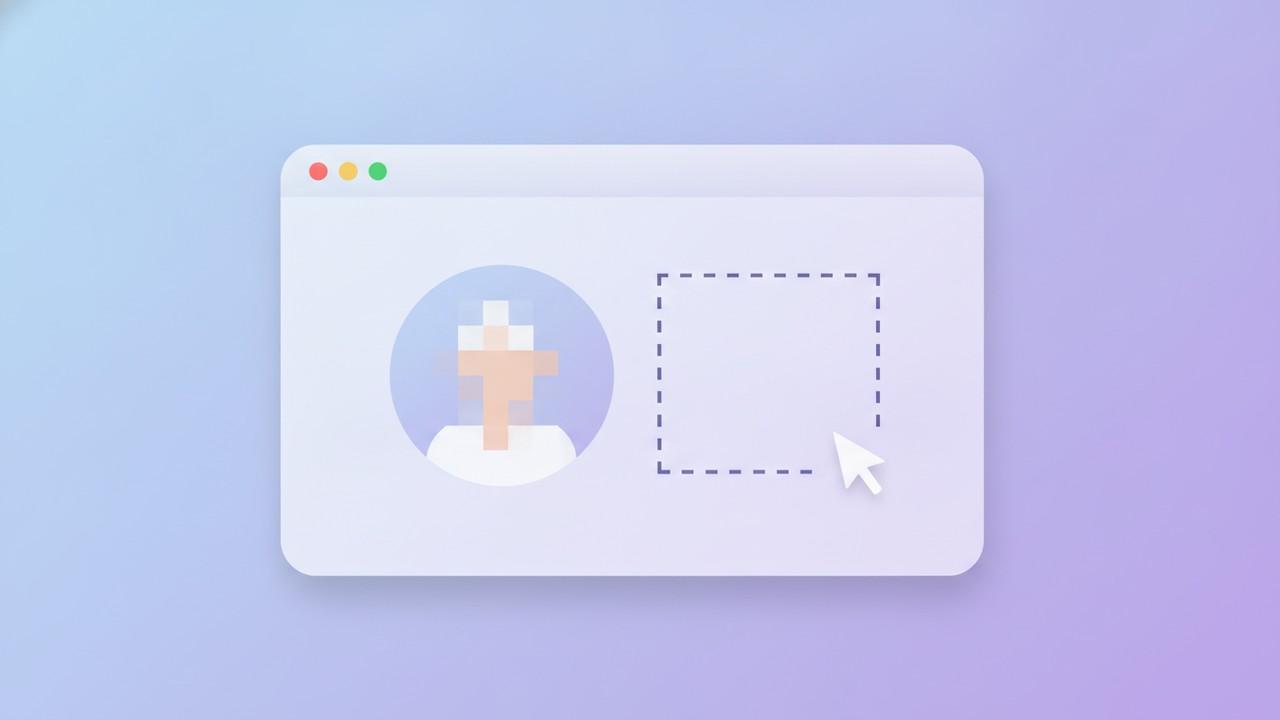
If your screenshot contains sensitive information — names, email addresses, account numbers — redact it before adding annotations. This keeps the redaction clean and ensures you don't accidentally annotate over (and draw attention to) something that should be hidden.
Auto-redaction tools can detect and blur common patterns like email addresses and phone numbers automatically. In Savvyshot, the auto-redact feature scans for this before you start annotating, so you're not layering blur on top of arrows after the fact.
7. Match the Visual Weight to the Medium
Where the screenshot ends up matters:
- In a document or presentation — annotations can be slightly larger since viewers have time to look
- In a Slack message or email — keep it minimal; people are scanning, not studying
- On social media or in a product demo — one bold annotation with a clean background will always outperform a dense, detailed markup
If your screenshot is going somewhere small or fast-moving, strip the annotations back further than you think you need to.
8. Check Before You Share
Before sharing any annotated screenshot, do a final scan:
- Is there anything in the frame that shouldn't be visible? (Personal data, internal URLs, test content)
- Can you remove any annotation without losing the point?
- Does the eye land on the right place first?
If you answered yes to the second question, remove it. Screenshots are one area where less is almost always more.
A Simple Annotation Workflow
Here's a repeatable process that keeps screenshots clean:
- Capture — frame only what's needed; crop out anything irrelevant
- Redact — remove sensitive content before touching annotations
- Annotate — one or two elements, one accent color, no redundancy with your caption
- Check — ask if the first thing the eye goes to is the right thing
- Export — PNG for documents and presentations; WebP for web use
Following this sequence makes cluttered screenshots structurally harder to produce — by the time you get to step 3, you've already scoped the image down to just what matters.
The Bottom Line
Annotations exist to remove ambiguity, not to add emphasis everywhere. The cleaner your markup, the faster your viewer understands it — and the more professional your work looks.
A single well-placed arrow on a clean screenshot communicates more than six arrows, three circles, and two text labels fighting for attention.
Start with less. You can always add more if something's genuinely unclear.