You've seen the difference. One screenshot looks like it was ripped straight from a cluttered desktop: browser tabs everywhere, a notification badge in the corner, raw edges dumped on a white background. Another looks like it belongs in a product launch post: clean, composed, sharp, with just enough visual context to make the content pop.
The gap between those two screenshots has nothing to do with design talent. It comes down to a handful of decisions made before and after the capture. And once you know what they are, polished screenshots become the default, not the exception.
This guide covers everything: how to set up your screen before capturing, what to fix after, and how to present screenshots in a way that looks intentional rather than accidental.
Why it matters more than you think
Screenshots show up everywhere: product documentation, social media posts, bug reports, portfolio pieces, sales decks, blog articles, onboarding flows. In every one of those contexts, a sloppy screenshot sends a quiet signal that the person sharing it didn't care enough to clean it up.
Conversely, a well-composed screenshot builds instant credibility. It tells the viewer: the person behind this is detail-oriented. It makes your content look more trustworthy, your product more polished, and your communication more effective.
The good news is that most of what makes a screenshot look bad is completely fixable, often in under 60 seconds.
Step 1: Clean up before you capture
The most common screenshot mistakes happen before anyone touches a single editing tool. Here's what to check before you hit capture.
Close unnecessary tabs and apps. Browser tab bars, notification badges, and system tray clutter in the background immediately make a screenshot feel rushed. Close everything that doesn't belong in frame.
Hide your bookmarks bar. Unless you're specifically capturing browser UI, the bookmarks bar adds visual noise. In Chrome or Edge, toggle it off with Ctrl+Shift+B (Windows) or Cmd+Shift+B (Mac) before capturing.
Use realistic placeholder data. If you're capturing a form, dashboard, or UI element, populate it with plausible-looking content. "John Smith" and "hello@company.com" read far better than "test123" or "asdfasdf". Screenshots with dummy data that looks real are significantly more trustworthy.
Match your zoom level to the context. Capture at 100% zoom where possible. Screenshots taken at unusual zoom levels often look pixelated or disproportionate when shared.
Hide the cursor. Unless the cursor is specifically pointing at something relevant, it usually creates visual noise in the final image. Most screenshot tools let you exclude it in settings.
Set a clean desktop or window state. If you're capturing a full application window, maximise it and make sure nothing is partially visible behind it.
Step 2: Capture only what's needed
Cropping tightly to the relevant content is one of the fastest ways to make any screenshot feel more deliberate. You don't need to show the entire screen if only a quarter of it is relevant.
A few principles:
- Capture the region, not the whole screen. Use a region capture tool so you can draw precisely around the content you need. This eliminates wasted whitespace and keeps the viewer's eye on what matters.
- Leave a little breathing room. Don't crop so tightly that the content feels squeezed. A small, consistent margin around the subject makes the composition feel balanced.
- Maintain consistent dimensions when sharing a series of screenshots in documentation, tutorials, or social posts. Inconsistent sizing across a set of images makes the whole piece feel less composed.
Step 3: Add a background
This is where a plain screenshot becomes a polished visual.
Dropping a screenshot onto a solid white background is the default and it's also one of the most forgettable presentations you can choose. A thoughtfully chosen background immediately adds depth, brand consistency, and visual hierarchy.
Gradient backgrounds are the most popular choice in 2026 for product screenshots shared on social media or in documentation. A soft gradient puts the screenshot front and centre while making the entire visual feel designed rather than dropped in.
Solid brand colours work well for documentation or in-app onboarding, where consistency with your product's colour palette is more important than visual flair.
Avoid jarring contrast. A neon background behind a pastel UI, or a white background behind a screenshot with white edges, both create visual confusion. Match the energy of the background to the content.
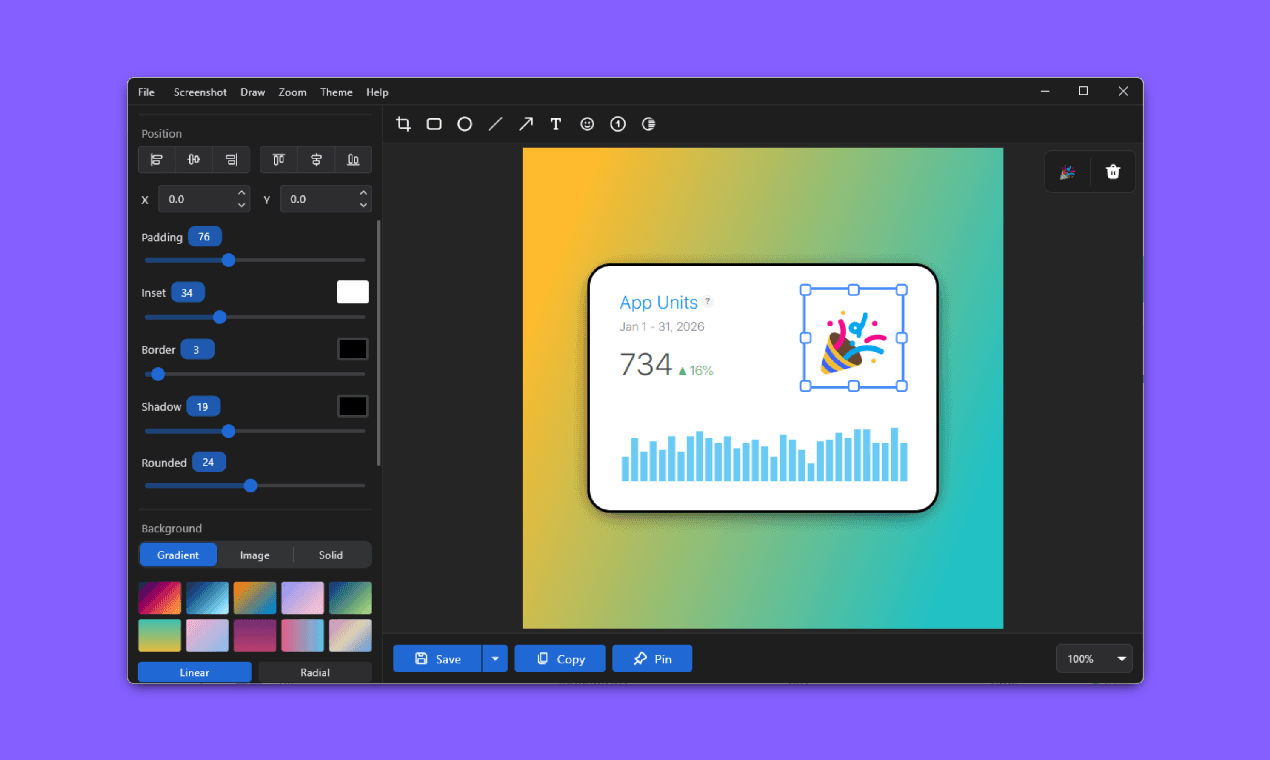
Tools like Savvyshot let you set custom backgrounds, gradients, and padding in seconds. So you can apply a consistent style across every screenshot without touching a design app.
Step 4: Add padding and shadow
Two small adjustments that make a disproportionately large impact:
Padding creates space between the screenshot and its background, preventing the image from feeling cramped or stuck to the edges. Think of it like the mat inside a picture frame, it gives the eye somewhere to rest before landing on the content. A consistent padding of around 40–80px on all sides is a solid starting point.
Drop shadows give screenshots a sense of depth and lift them visually off the background. A subtle, soft shadow at a slight offset (rather than a harsh, dark one directly below) is almost always the right choice. It makes the screenshot feel like it's floating slightly above the background plane, which reads as polished without being heavy-handed.
Both of these adjustments are typically one-click operations in dedicated screenshot tools, which is why it's worth using one rather than doing this manually in image editors.
Step 5: Annotate with purpose
Annotations such as arrows, text labels, circles are incredibly useful for directing attention. They're also one of the easiest ways to make a screenshot look cluttered if overused.
A few rules that keep annotations looking clean:
Use one annotation style per screenshot. Mixing arrows, circles, and rectangles in the same image creates visual chaos. Pick one shape and stick to it across the piece.
Keep labels short. If a label needs more than four or five words to explain itself, the annotation probably isn't placed correctly. Move it closer to what it's describing, or reconsider whether text is the right tool at all.
Use colour to convey meaning, not decoration. Red for errors or warnings. Blue or green for neutral callouts. Avoid using multiple arbitrary colours in the same screenshot, it implies meaning that isn't there.
Less is almost always more. A single, well-placed arrow pointing at the relevant button is cleaner than five overlapping callouts. If everything is highlighted, nothing is.
Step 6: Protect sensitive information
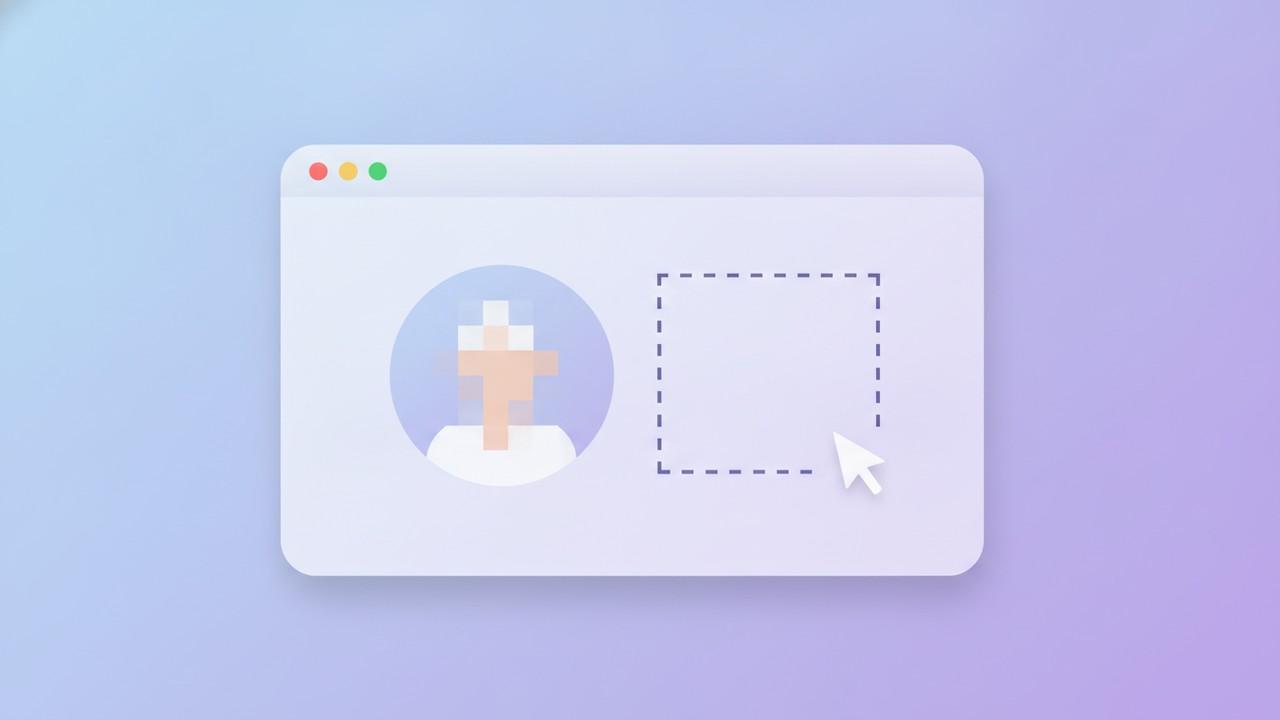
If your screenshot contains any personal data such as email addresses, full names, credit card numbers, account IDs, or internal company information, blur or redact it before sharing. This is both a professional courtesy and often a legal requirement depending on your context.
The two main approaches:
Manual blur lets you draw over any area and apply a blur effect. This is fast for one-off redactions.
Auto-redaction uses on-device OCR to detect sensitive patterns (email addresses, phone numbers, card numbers) and redact them automatically. Tools like Savvyshot include this natively, which is especially useful when you're processing screenshots in bulk.
Whatever method you use, make sure the redaction is opaque. A semi-transparent blur that still lets the text show through isn't protection, it's a false sense of security.
Step 7: Export at the right size and format
The final step that many people get wrong. A perfectly composed screenshot can still look bad if it's exported at the wrong resolution or in the wrong format.
Always save screenshots as PNG, not JPEG. JPEG compression introduces visible artefacts, blurred text edges, smeared colours that are especially noticeable in UI screenshots with sharp lines and text. PNG is lossless and keeps everything crisp.
Don't upscale. Enlarging a low-resolution screenshot to fit a larger container will always look worse than capturing at a higher resolution in the first place. If your screenshot looks too small, recapture it, don't resize it up.
Name your files descriptively. dashboard-settings-export.png is vastly more useful than Screenshot 2026-04-22.png, especially when you're managing dozens of screenshots across a project. This is especially important for documentation that will need to be updated when the UI changes.
The full checklist at a glance
Before capturing:
- Close unnecessary tabs, apps, and notifications
- Hide the bookmarks bar
- Use realistic placeholder data
- Set zoom to 100%
- Hide the cursor (unless needed)
After capturing:
- Crop tightly to the relevant content
- Add a background (gradient, solid, or brand colour)
- Add consistent padding and a soft drop shadow
- Annotate sparingly, with a single consistent style
- Redact any sensitive information
- Export as PNG at 2x resolution
- Use a descriptive file name
Tools that make this fast
You can do most of the above manually using a combination of your OS screenshot tool and an image editor like Photoshop or Figma. But that workflow involves multiple apps, several export steps, and a lot of repetitive setup.
A dedicated screenshot beautifier handles most of the checklist automatically. Savvyshot captures, applies backgrounds, adds padding and shadows, lets you annotate, redacts sensitive data with on-device OCR, and exports to PNG - all in a single workflow, on both Windows and Mac, with no cloud account required.
If you're taking more than a handful of screenshots per week, the time savings compound quickly.
The bottom line
There's no single thing that makes a screenshot look professional. It's a combination of small decisions: a clean capture, a considered background, consistent padding, restrained annotations, lossless export, that add up to a visual that looks intentional rather than incidental.
None of it requires design training. It just requires slowing down for 60 seconds before you share.