You've probably hit this wall before: you need to capture an entire web page, a long chat thread, or a settings panel that scrolls — but a regular screenshot only grabs what fits on screen. Stitching together five or six separate screenshots in an image editor afterward is slow and the seams rarely line up cleanly.
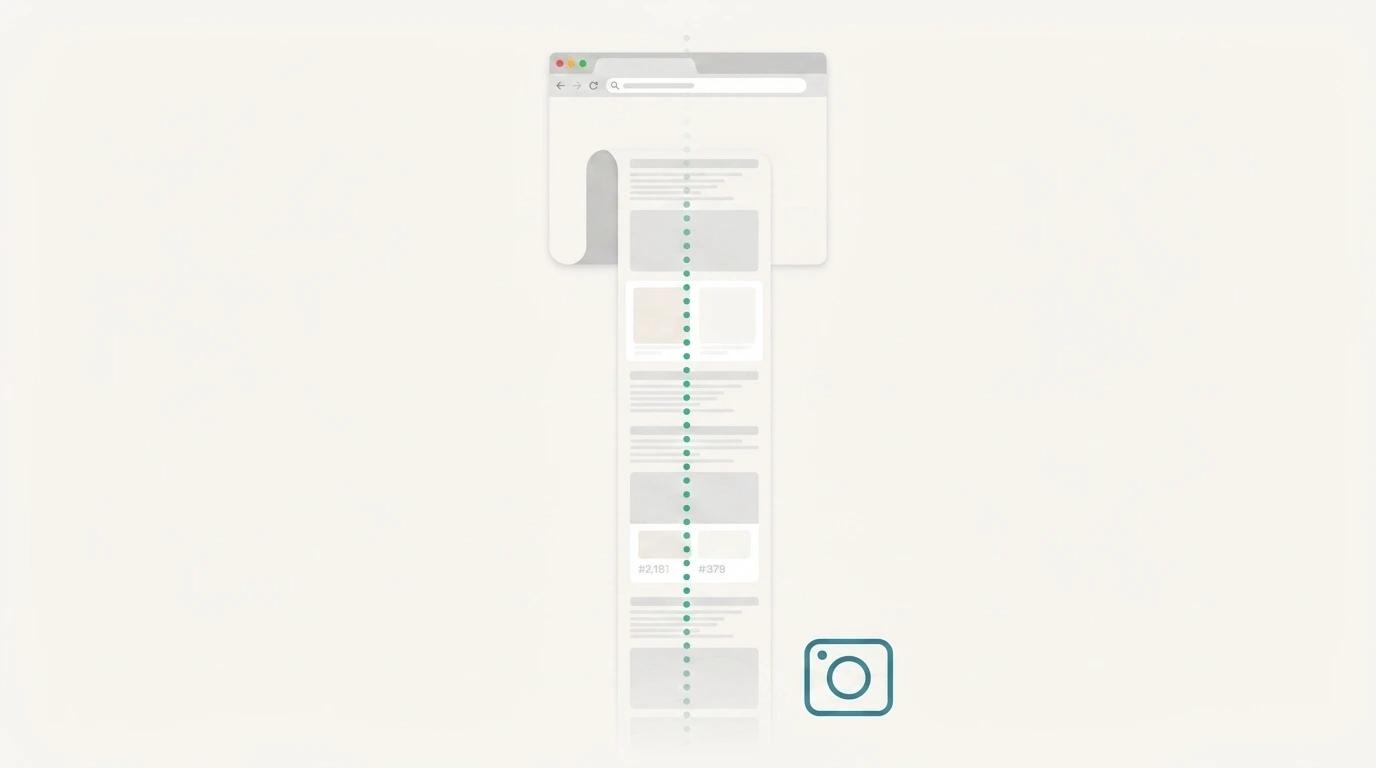
A scrolling screenshot (sometimes called a "full-page screenshot" or "long screenshot") solves this by automatically scrolling through the content and stitching every section into a single tall image. Here's how to do it on both Mac and Windows.
What Counts as a Scrolling Screenshot
A scrolling screenshot captures content that's taller than your visible screen — anything you'd normally have to scroll down to see in full. Common use cases:
- A long web page or article
- An entire chat or messaging thread
- A settings panel with many sections
- A document or PDF viewer
- A spreadsheet with more rows than fit on screen
- Customer support tickets with a long back-and-forth
The output is one continuous image rather than several disconnected screenshots — much easier to read, send, or drop into a support ticket.
Method 1: Using Savvyshot (Mac and Windows)
Savvyshot has a dedicated scrolling capture mode that handles the scrolling and stitching automatically, so you don't need to take multiple screenshots or piece anything together manually.
Steps:
- Press Ctrl+Shift+7 (the default scrolling capture hotkey), or trigger Capture Scrolling Area from the home window or tray menu.
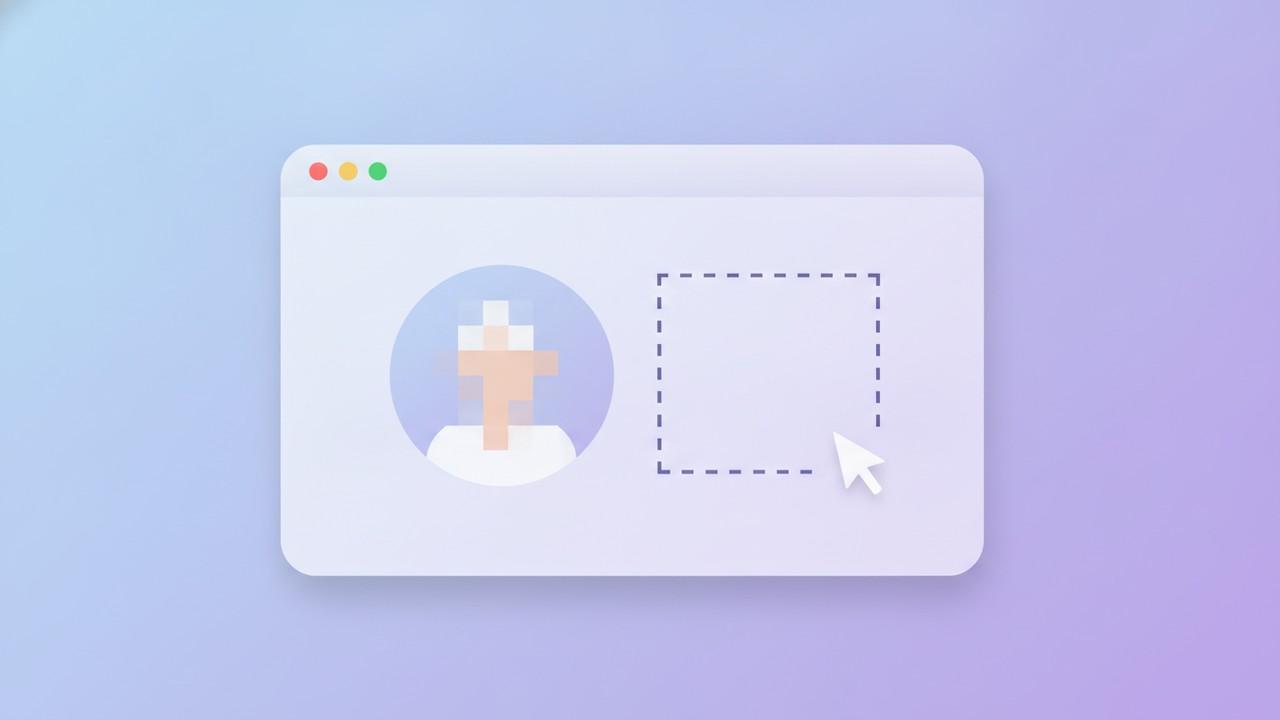
- Draw a selection rectangle around the scrollable area — the same way you'd draw a region capture.
- Release your cursor. Savvyshot will show a progress indicator while it:
- Captures the visible portion of your selection
- Scrolls the target window or area down
- Captures again and detects the overlap with the previous frame
- Repeats this until it reaches the end of the scrollable content
- The finished, stitched screenshot opens directly in the editor — or in a floating preview window if you have that setting enabled — ready for annotation, backgrounds, or export.
Because the stitching happens automatically based on detecting overlap between frames, you don't need to worry about getting seams to line up. It works best with standard scroll containers like web pages, document viewers, and chat apps. Very custom or virtualized scroll areas (some infinite-scroll feeds, for example) may not stitch perfectly — if a capture stops early, try selecting a slightly smaller region that stays fully within the scrollable content.
macOS permissions
On macOS, scrolling capture needs the system's cooperation to actually scroll the target window and read what's on screen, so two permissions are required the first time you use it:
- Screen Recording — so Savvyshot can read the window's content
- Accessibility — so Savvyshot can programmatically scroll the window
Savvyshot will prompt you for these automatically on first use. If you skip the prompt, you can grant them manually under System Settings → Privacy & Security, then restart the app.
This is one advantage of using a dedicated tool over the built-in OS shortcuts below — Windows and macOS don't have a native equivalent, so without a third-party tool you're stuck taking and merging screenshots by hand.
Method 2: Built-in Browser Tools (Chrome, Edge, Firefox)
If you only need to capture a web page (not an app window, document, or chat thread), most modern browsers have a built-in full-page screenshot option:
Chrome / Edge:
- Open DevTools (
F12orCmd+Option+Ion Mac) - Press
Cmd+Shift+P(Mac) orCtrl+Shift+P(Windows) to open the command menu - Type "screenshot" and select Capture full size screenshot
Firefox:
- Right-click anywhere on the page
- Select Take Screenshot
- Choose Save full page
This works well for simple static pages, but it's browser-only — it won't help with chat apps, native applications, settings panels, or anything outside the browser window. It also tends to render slightly differently from what you actually see on screen, since it forces the page into a "print" rendering mode.
Method 3: Manual Stitching (Last Resort)
If you don't have access to a dedicated tool, you can manually capture and stitch:
- Take a screenshot of the visible area
- Scroll down by roughly one screen height
- Take another screenshot, slightly overlapping the previous one
- Repeat until you've covered all the content
- Open an image editor and manually align and merge each screenshot, cropping out the overlapping sections
This works in a pinch, but it's slow, error-prone, and the seams are often visible if the scroll amount wasn't perfectly consistent. It's worth doing once to understand why automatic stitching tools exist — and not more than once after that.
Tips for Better Scrolling Screenshots
- Close anything that auto-plays or changes on scroll. Animated banners, auto-rotating carousels, or live-updating content can cause visible glitches in the stitched result since each frame is captured at a slightly different moment.
- Pause notifications first. A notification popping up mid-capture will get baked into your screenshot.
- Select a slightly narrower region if scrollbars are visible. Including the scrollbar itself in your capture can look messy in the final image.
- Redact before sharing. Long scrolling captures — especially of chat threads or account settings — are more likely to include something sensitive somewhere in the content. Check the full image (not just the top) before sending it anywhere.
- Export as WebP for web use. Scrolling screenshots tend to be large files since they're tall; WebP keeps the file size manageable without losing visible quality, which matters if you're embedding it in documentation or a support ticket.
When You Don't Need a Scrolling Screenshot
Not every long page needs a full scrolling capture. If you're trying to point out one specific issue — a typo, a misaligned button, an error message — a regular region capture of just that area, with an annotation, communicates the problem faster than a full-page image the viewer has to scroll through themselves.
Save scrolling capture for cases where the length of the content is part of what you're trying to show — a long thread, an entire form, a full settings page — not as a default for every screenshot.
The Bottom Line
A built-in browser shortcut is fine for simple web pages, but it won't help outside the browser. Manual stitching works but isn't worth the time it takes. For anything beyond an occasional one-off — chat threads, settings panels, documents, or frequent screenshot needs — a dedicated scrolling capture tool that handles the scrolling and stitching automatically saves real time and produces a cleaner result.